Create a Server
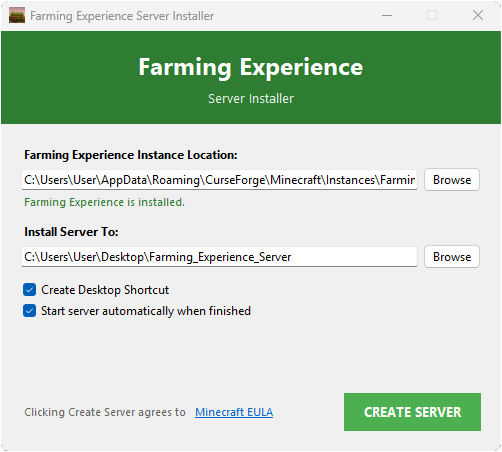
Farming Experience Server Installer
Creating a modded Minecraft server can be a complicated and time-consuming process. I created Farming Experience Server Installer to make it easier for you to set up your server.
It's a completely free and open-source automation script created in Python that downloads all the files you need to set up your server.
Download Farming Experience Server Installer.
Prerequisites
Before running the Farming Experience Server Installer, make sure you have:
- Port Forwarding: For your friends to connect to your server, your router must allow the connection. If you have already opened port
25565, the server will work immediately. See here how to open it.
Important
If you want to play with others connected to the same network, you don't need to do port forwarding, just use your local IP address shown in the last step of the server installer.
- Java 21 Installed: Required to run the NeoForge installer and server. Download Java 21 for Windows from Adoptium.
- Farming Experience: You must have the modpack installed via the CurseForge App or Modrinth App. If you're using a different launcher, make sure to change the path of
Farming Experience Instance Locationinside the server installer to your modpack location.
Installation
- Download Farming Experience Server Installer from the releases page on GitHub.
- Place the
farmingexperience-server-installer_XX.XX.XX.exefile you just downloaded in an empty folder, the installer will later create a separate folder for the server's contents. - Run the server installer.
- The server installer will try to detect your modpack folder. If it fails, click
Browseto select your Farming Experience instance folder. - Click
Create Server, by clicking this button you will agree to Minecraft's EULA. - Once finished, the server installer will automatically start the server. Copy the public or local IP address, and send it to your friends!
Troubleshooting
Server Won't Start
If the server fails to start, and you see a Press any key to continue... text on the server console, it might be caused by one of these reasons:
Unsupported Mods
Some mods like fast-ip-ping, entity_model_features, entity_texture_features, lambdynamiclights, sodium, holdmyitemsnf, fog, and raised might cause the server to immediately crash.
How to Fix: Please remove them from the server /mods/ folder and try again.
Port Forwarding Issues
Some routers might block the connection to the server for security reasons. It's not possible to solve this issue from the server side, you need to configure your router to allow the connection.
How to Fix: Please make sure you have port forwarded 25565 on your router. See here how to open it.
Unsupported Java Version
Make sure you are using Java 21 to run the server, if you're using a different version, the server will fail to start.
How to Fix: Download Java 21 for Windows from Adoptium.
If you tried all of the fixes above and the server still fails to start, feel free to ask for help on my Discord server.